<!DOCTYPE html>
	<html lang="vi" xmlns="http://www.w3.org/1999/xhtml" prefix="og: http://ogp.me/ns#">
	<head>
<title>Hướng dẫn tạo hiệu ứng chữ viết PowerPoint</title>
<meta name="description" content="Hướng dẫn tạo hiệu ứng chữ viết PowerPoint - Savefile - Tin Tức -...">
<meta name="author" content="Trung học cơ sở Nguyễn Trực - Thị Trấn Kim Bài">
<meta name="copyright" content="Trung học cơ sở Nguyễn Trực - Thị Trấn Kim Bài [thinhvuongvn73@gmail.com]">
<meta name="generator" content="NukeViet v4.5">
<meta name="viewport" content="width=device-width, initial-scale=1">
<meta http-equiv="Content-Type" content="text/html; charset=utf-8">
<meta property="og:title" content="Hướng dẫn tạo hiệu ứng chữ viết PowerPoint">
<meta property="og:type" content="website">
<meta property="og:description" content="Savefile - Tin Tức - https&#x3A;&#x002F;&#x002F;thcsnguyentruc.xathanhoai.edu.vn&#x002F;savefile&#x002F;Tin-cong-nghe&#x002F;huong-dan-tao-hieu-ung-chu-viet-powerpoint-67.html">
<meta property="og:site_name" content="Trung học cơ sở Nguyễn Trực - Thị Trấn Kim Bài">
<meta property="og:url" content="https://thcsnguyentruc.xathanhoai.edu.vn/savefile/Tin-cong-nghe/huong-dan-tao-hieu-ung-chu-viet-powerpoint-67.html">
<link rel="shortcut icon" href="https://thcsnguyentruc.xathanhoai.edu.vn/uploads/thcsnguyentructhitrankimbai/logo.png">
<link rel="canonical" href="https://thcsnguyentruc.xathanhoai.edu.vn/savefile/Tin-cong-nghe/huong-dan-tao-hieu-ung-chu-viet-powerpoint-67.html">
<link rel="alternate" href="https://thcsnguyentruc.xathanhoai.edu.vn/rss/" title="Tin Tức" type="application/rss+xml">
<link rel="alternate" href="https://thcsnguyentruc.xathanhoai.edu.vn/rss/giao-duc-va-dao-tao/" title="Tin Tức - Hoạt động chuyên môn" type="application/rss+xml">
<link rel="alternate" href="https://thcsnguyentruc.xathanhoai.edu.vn/rss/Ban-tin-noi-bo/" title="Tin Tức - Bản tin nội bộ" type="application/rss+xml">
<link rel="alternate" href="https://thcsnguyentruc.xathanhoai.edu.vn/rss/Tin-cong-nghe/" title="Tin Tức - Tin công nghệ" type="application/rss+xml">
<link rel="alternate" href="https://thcsnguyentruc.xathanhoai.edu.vn/rss/hoat-dong-doi/" title="Tin Tức - Hoạt động đoàn đội" type="application/rss+xml">
<link rel="alternate" href="https://thcsnguyentruc.xathanhoai.edu.vn/rss/y-te-hoc-duong/" title="Tin Tức - Y tế học đường" type="application/rss+xml">
<link rel="alternate" href="https://thcsnguyentruc.xathanhoai.edu.vn/rss/cong-doan-nganh/" title="Tin Tức - Công đoàn ngành" type="application/rss+xml">
<link rel="alternate" href="https://thcsnguyentruc.xathanhoai.edu.vn/rss/hoat-dong-khac/" title="Tin Tức - Hoạt động khác" type="application/rss+xml">
<link rel="alternate" href="https://thcsnguyentruc.xathanhoai.edu.vn/rss/thu-vien/" title="Tin Tức - Hoạt động thư viện" type="application/rss+xml">
<link rel="alternate" href="https://thcsnguyentruc.xathanhoai.edu.vn/rss/guong-tot-viec-tot/" title="Tin Tức - Gương tốt việc tốt" type="application/rss+xml">
<link rel="alternate" href="https://thcsnguyentruc.xathanhoai.edu.vn/rss/thi-dua-khen-thuong/" title="Tin Tức - Thi đua khen thưởng" type="application/rss+xml">
<link rel="alternate" href="https://thcsnguyentruc.xathanhoai.edu.vn/rss/cong-khai/" title="Tin Tức - Công khai" type="application/rss+xml">
<link rel="preload" as="style" href="https://thcsnguyentruc.xathanhoai.edu.vn/assets/css/font-awesome.min.css" type="text/css">
<link rel="preload" as="style" href="https://thcsnguyentruc.xathanhoai.edu.vn/themes/edu25th/css/hover.css" type="text/css">
<link rel="preload" as="style" href="https://thcsnguyentruc.xathanhoai.edu.vn/themes/edu25th/css/bootstrap.min.css" type="text/css">
<link rel="preload" as="style" href="https://thcsnguyentruc.xathanhoai.edu.vn/themes/edu25th/css/style.css" type="text/css">
<link rel="preload" as="style" href="https://thcsnguyentruc.xathanhoai.edu.vn/themes/edu25th/css/style.responsive.css" type="text/css">
<link rel="preload" as="style" href="https://thcsnguyentruc.xathanhoai.edu.vn/themes/edu25th/css/news.css" type="text/css">
<link rel="preload" as="style" href="https://thcsnguyentruc.xathanhoai.edu.vn/themes/edu25th/css/custom.css" type="text/css">
<link rel="preload" as="style" href="https://thcsnguyentruc.xathanhoai.edu.vn/themes/edu25th/css/style-light-brown.css?t=3404118857" type="text/css">
<link rel="preload" as="script" href="https://thcsnguyentruc.xathanhoai.edu.vn/assets/js/jquery/jquery.min.js" type="text/javascript">
<link rel="preload" as="script" href="https://thcsnguyentruc.xathanhoai.edu.vn/assets/js/language/vi.js" type="text/javascript">
<link rel="preload" as="script" href="https://thcsnguyentruc.xathanhoai.edu.vn/assets/js/DOMPurify/purify3.js" type="text/javascript">
<link rel="preload" as="script" href="https://thcsnguyentruc.xathanhoai.edu.vn/assets/js/global.js" type="text/javascript">
<link rel="preload" as="script" href="https://thcsnguyentruc.xathanhoai.edu.vn/assets/js/site.js" type="text/javascript">
<link rel="preload" as="script" href="https://thcsnguyentruc.xathanhoai.edu.vn/themes/edu25th/js/news.js" type="text/javascript">
<link rel="preload" as="script" href="https://thcsnguyentruc.xathanhoai.edu.vn/themes/edu25th/js/main.js" type="text/javascript">
<link rel="preload" as="script" href="https://thcsnguyentruc.xathanhoai.edu.vn/themes/edu25th/js/custom.js" type="text/javascript">
<link rel="preload" as="script" href="https://thcsnguyentruc.xathanhoai.edu.vn/themes/edu25th/js/bootstrap.min.js" type="text/javascript">
<link rel="StyleSheet" href="https://thcsnguyentruc.xathanhoai.edu.vn/assets/css/font-awesome.min.css">
<link rel="StyleSheet" href="https://thcsnguyentruc.xathanhoai.edu.vn/themes/edu25th/css/hover.css">
<link rel="StyleSheet" href="https://thcsnguyentruc.xathanhoai.edu.vn/themes/edu25th/css/bootstrap.min.css">
<link rel="StyleSheet" href="https://thcsnguyentruc.xathanhoai.edu.vn/themes/edu25th/css/style.css">
<link rel="StyleSheet" href="https://thcsnguyentruc.xathanhoai.edu.vn/themes/edu25th/css/style.responsive.css">
<link rel="StyleSheet" href="https://thcsnguyentruc.xathanhoai.edu.vn/themes/edu25th/css/news.css">
<link rel="StyleSheet" href="https://thcsnguyentruc.xathanhoai.edu.vn/themes/edu25th/css/custom.css">
<link rel="StyleSheet" href="https://thcsnguyentruc.xathanhoai.edu.vn/themes/edu25th/css/style-light-brown.css?t=3404118857">
<style type="text/css">
	body{background: #fff;}
</style>
	</head>
	<body>
<div id="print">
	<div id="hd_print">
		<h2 class="pull-left">Trung học cơ sở Nguyễn Trực - Thị Trấn Kim Bài</h2>
		<p class="pull-right"><a title="Trung học cơ sở Nguyễn Trực - Thị Trấn Kim Bài" href="https://thcsnguyentruc.xathanhoai.edu.vn/">https://thcsnguyentruc.xathanhoai.edu.vn</a></p>
	</div>
	<div class="clear"></div>
	<hr />
	<div id="content">
		<h1>Hướng dẫn tạo hiệu ứng chữ viết PowerPoint</h1>
		<ul class="list-inline">
			<li>Thứ sáu - 24/09/2021 15:46</li>
			<li class="hidden-print txtrequired"><em class="fa fa-print">&nbsp;</em><a title="In ra" href="javascript:;" onclick="window.print()">In ra</a></li>
			<li class="hidden-print txtrequired"><em class="fa fa-power-off">&nbsp;</em><a title="Đóng cửa sổ này" href="javascript:;" onclick="window.close()">Đóng cửa sổ này</a></li>
		</ul>
		<div class="clear"></div>
		<div id="hometext">
		</div>
		<div id="bodytext" class="clearfix">
			<p><strong>Bước 1:</strong></p>

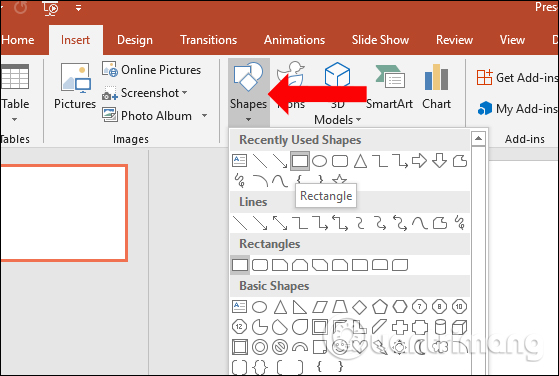
<p>Bạn mở slide trên PowerPoint rồi làm trắng slide. Tiếp đến nhấn vào&nbsp;<strong>mục Insert</strong>&nbsp;rồi chọn tiếp vào&nbsp;<strong>mục Shapes</strong>, chọn hình chữ nhật rồi vẽ lên trên giao diện slide.<br />
<img alt="Khung hình chữ nhật" src="https://st.quantrimang.com/photos/image/2019/01/03/PowerPoint-hieu-ung-handwriting-1.jpg" /><br />
&nbsp;</p>

<p><strong>Bước 2:</strong></p>

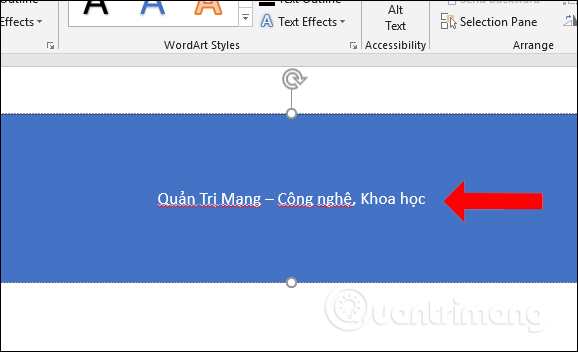
<p>Nhấn chuột phải vào khung hình chữ nhật rồi&nbsp;<strong>chọn Edit text</strong>&nbsp;rồi nhập nội dung chữ viết vào trong khung hình.<br />
<img alt="Viết chữ" src="https://st.quantrimang.com/photos/image/2019/01/03/PowerPoint-hieu-ung-handwriting-2.jpg" /><br />
&nbsp;</p>

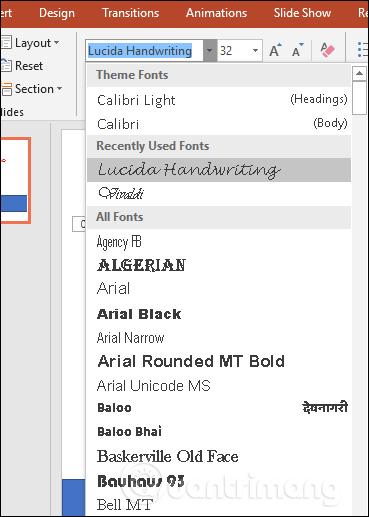
<p>Bạn tiến hành lựa chọn font chữ, định dạng cỡ chữ cho nội dung trên slide.<br />
<img alt="Định dạng chữ" src="https://st.quantrimang.com/photos/image/2019/01/03/PowerPoint-hieu-ung-handwriting-29.jpg" /></p>

<p><strong>Bước 3:</strong></p>

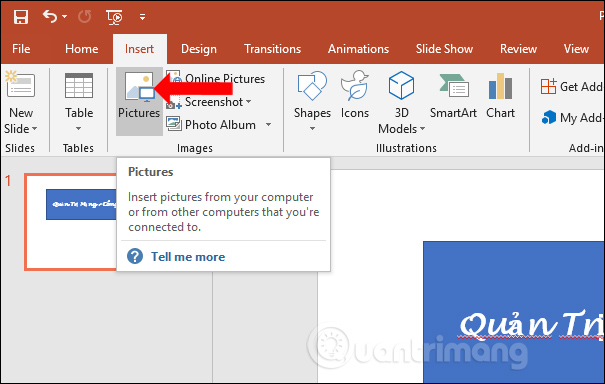
<p>Tiếp tục nhấn vào&nbsp;<strong>mục Insert</strong>&nbsp;rồi nhấn vào&nbsp;<strong>phần Pictures</strong>&nbsp;để lựa chọn hình ảnh bàn tay cầm bút đã tải về máy tính. Chúng ta nên lựa chọn ảnh cầm bút không có bóng mờ, nên chọn ảnh nền màu trắng.<br />
<img alt="Chèn hình ảnh" src="https://st.quantrimang.com/photos/image/2019/01/03/PowerPoint-hieu-ung-handwriting-3.jpg" /><br />
Thay đổi kích thước hình ảnh sao cho phù hợp với slide, không nên để ảnh cầm bút quá to và xoay hướng chiều bút theo chiều viết từ trái sang phải. Di chuyển đầu nét bút tiến gần với chữ cái bắt đầu để tạo hiệu ứng chữ viết<br />
<img alt="Chỉnh hình ảnh" src="https://st.quantrimang.com/photos/image/2019/01/03/PowerPoint-hieu-ung-handwriting-4.jpg" /></p>

<p><strong>Bước 4:</strong></p>

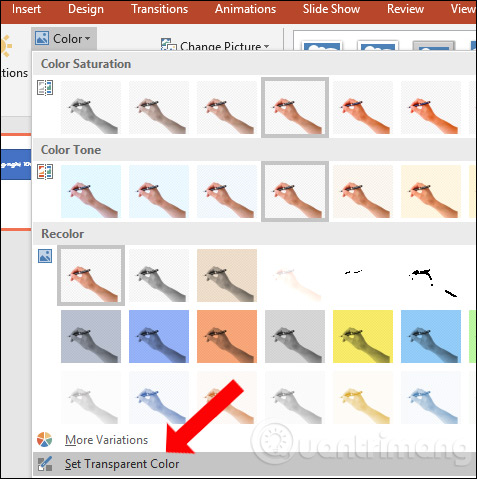
<p>Hình ảnh cầm bút sẽ còn hình nền nên click vào hình ảnh, chọn vào&nbsp;<strong>tab Format</strong>&nbsp;rồi chọn&nbsp;<strong>phần Color</strong>. Nhấn tiếp vào phần&nbsp;<strong>Set Transparent Color</strong>&nbsp;để bỏ nền màu trắng của ảnh cầm bút. Khi đó biểu tượng trỏ chuột sẽ được thay đổi kiểu dáng để click vào hình ảnh và bỏ nền.<br />
<img alt="Xóa nền bút" src="https://st.quantrimang.com/photos/image/2019/01/03/PowerPoint-hieu-ung-handwriting-5.jpg" /></p>

<p><strong>Bước 5:</strong></p>

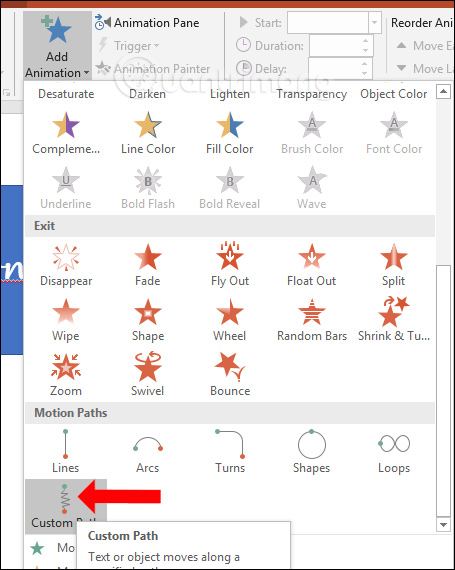
<p>Sau đó người dùng sẽ thiết lập hiệu ứng di chuyển hình bàn tay theo chiều dài của chữ, tạo kiểu nét viết cho chữ. Nhấn&nbsp;<strong>tab Animations</strong>, click vào hình ảnh rồi nhấn vào&nbsp;<strong>Add Animation</strong>. Tại phần&nbsp;<strong>hiệu ứng Motion Path</strong>&nbsp;click chọn vào&nbsp;<strong>Custom Path</strong>&nbsp;để tùy chỉnh hiệu ứng.</p>

<p><img alt="Chọn hiệu ứng cầm bút" data-i="7" data-src="https://st.quantrimang.com/photos/image/2019/01/03/PowerPoint-hieu-ung-handwriting-7.jpg" data-was-processed="true" height="570" src="https://st.quantrimang.com/photos/image/2019/01/03/PowerPoint-hieu-ung-handwriting-7.jpg" width="455" /><br />
&nbsp;</p>

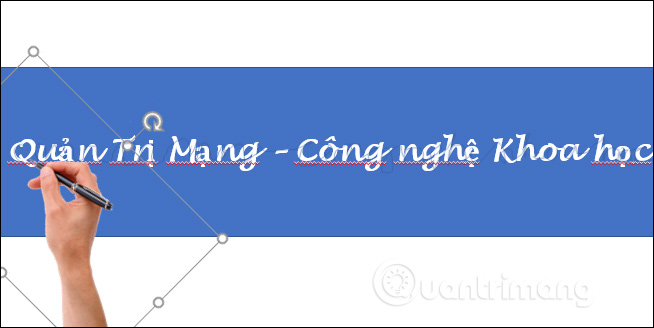
<p>Sau đó biểu tượng trỏ chuột sẽ chuyển sang hình chữ tập. Tại đây người dùng sẽ vẽ đường chữ viết liền nhau theo hình dáng của từng chữ. Bạn chỉ cần vẽ tương đối để nét bút di chuyển theo thôi nhé. Khi hết chiều dài của chữ thì nhả chuột và click đúp chuột.</p>

<p><img alt="Tạo đường viết chữ" data-i="8" data-src="https://st.quantrimang.com/photos/image/2019/01/03/PowerPoint-hieu-ung-handwriting-8.jpg" data-was-processed="true" height="321" src="https://st.quantrimang.com/photos/image/2019/01/03/PowerPoint-hieu-ung-handwriting-8.jpg" width="640" /></p>

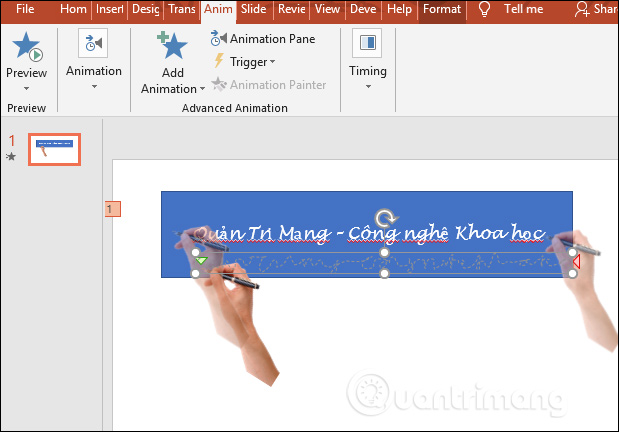
<p>Kết quả đường vẽ chữ sẽ hiển thị như dưới đây.</p>

<p><img alt="Kiểu đường vẽ chữ" data-i="9" data-src="https://st.quantrimang.com/photos/image/2019/01/03/PowerPoint-hieu-ung-handwriting-9.jpg" data-was-processed="true" height="432" src="https://st.quantrimang.com/photos/image/2019/01/03/PowerPoint-hieu-ung-handwriting-9.jpg" width="619" /></p>

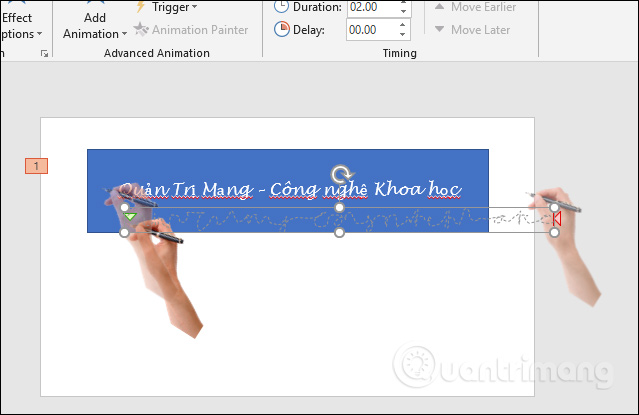
<p>Trong trường hợp chúng ta muốn kéo dài hiệu ứng bàn tay quá nét bút hoặc chỉnh sửa ngắn lại thì click vào đường chữ viết và kéo giãn hoặc co vào. Có thể nhấn vào nút Preview để chạy thử hiệu ứng.</p>

<p><img alt="Điều chỉnh đường viết chữ" data-i="10" data-src="https://st.quantrimang.com/photos/image/2019/01/03/PowerPoint-hieu-ung-handwriting-10.jpg" data-was-processed="true" height="415" src="https://st.quantrimang.com/photos/image/2019/01/03/PowerPoint-hieu-ung-handwriting-10.jpg" width="639" /></p>

<p><strong>Bước 6:</strong></p>

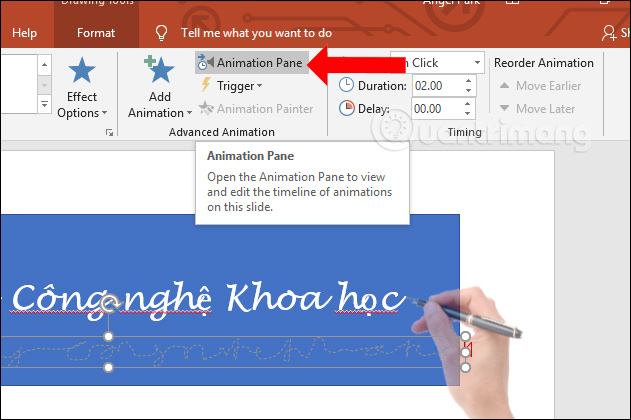
<p>Do hiệu ứng cầm bút đang chuyển động rất nhanh, nên bạn cần click vào&nbsp;<strong>Animation Pane</strong>&nbsp;bên trên.</p>

<p><img alt="Điều chỉnh tốc độ" data-i="11" data-src="https://st.quantrimang.com/photos/image/2019/01/03/PowerPoint-hieu-ung-handwriting-11.jpg" data-was-processed="true" height="420" src="https://st.quantrimang.com/photos/image/2019/01/03/PowerPoint-hieu-ung-handwriting-11.jpg" width="631" /></p>

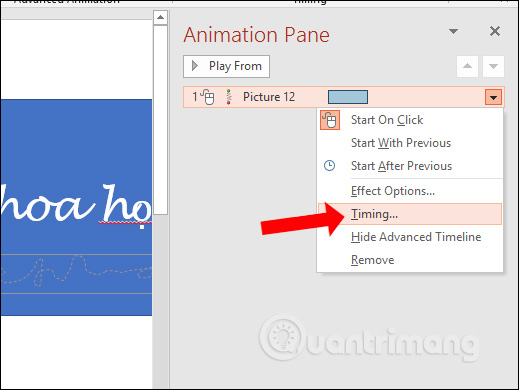
<p>Khi đó ở ngoài cùng giao diện bên phải hiển thị khung chỉnh hiệu ứng, click vào hiệu ứng đầu tiên và&nbsp;<strong>chọn Timing</strong>&nbsp;để chỉnh thời gian.</p>

<p><img alt="Chỉnh thời gian chạy hiệu ứng" data-i="12" data-src="https://st.quantrimang.com/photos/image/2019/01/03/PowerPoint-hieu-ung-handwriting-12.jpg" data-was-processed="true" height="390" src="https://st.quantrimang.com/photos/image/2019/01/03/PowerPoint-hieu-ung-handwriting-12.jpg" width="519" /></p>

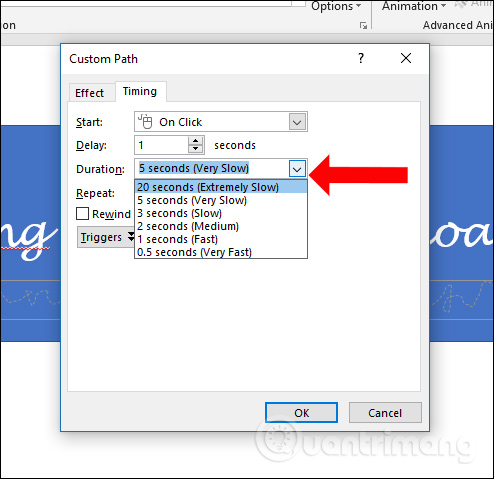
<p>Tại giao diện hộp thoại tên của hiệu ứng Custom Path, bạn nhấn chọn thời gian&nbsp;<strong>tại Duration</strong>&nbsp;để chạy hiệu ứng cầm bút. Về cơ bản chúng ta sẽ chọn khoảng 5 giây là được. Phần&nbsp;<strong>Delay</strong>&nbsp;có thể để tạm là 1. Cũng nhấn lại vào Preview để xem kết quả như nào.</p>

<p><img alt="Thời gian chạy" data-i="13" data-src="https://st.quantrimang.com/photos/image/2019/01/03/PowerPoint-hieu-ung-handwriting-13.jpg" data-was-processed="true" height="479" src="https://st.quantrimang.com/photos/image/2019/01/03/PowerPoint-hieu-ung-handwriting-13.jpg" width="494" /></p>

<p><strong>Bước 7:</strong></p>

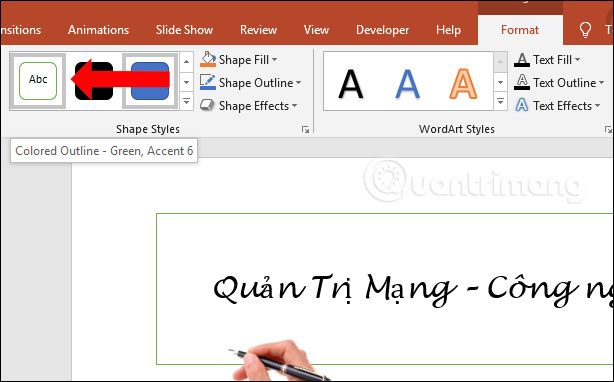
<p>Như vậy đã xong hiệu ứng cho ảnh cầm bút. Tiếp đến người dùng sẽ tùy chỉnh lại hình chữ nhật xanh bên dưới. Click chuột vào hình chữ nhật trên slide, rồi chọn nền trắng chữ đen tại&nbsp;<strong>phần Shape Styles</strong>&nbsp;như hình.</p>

<p><img alt="Chọn nền chữ nhật" data-i="14" data-src="https://st.quantrimang.com/photos/image/2019/01/03/PowerPoint-hieu-ung-handwriting-14.jpg" data-was-processed="true" height="382" src="https://st.quantrimang.com/photos/image/2019/01/03/PowerPoint-hieu-ung-handwriting-14.jpg" width="614" /></p>

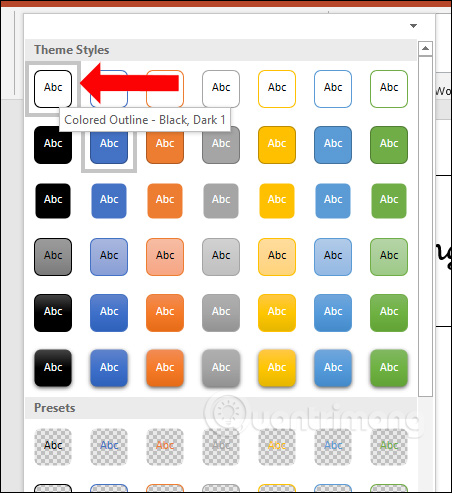
<p>Nếu muốn thêm các kiểu khác thì nhấn vào biểu tượng tam giác ngược và chọn kiểu hiệu ứng khác.</p>

<p><img alt="Chọn hiệu ứng khác" data-i="15" data-src="https://st.quantrimang.com/photos/image/2019/01/03/PowerPoint-hieu-ung-handwriting-15-1.jpg" data-was-processed="true" height="493" src="https://st.quantrimang.com/photos/image/2019/01/03/PowerPoint-hieu-ung-handwriting-15-1.jpg" width="452" /></p>

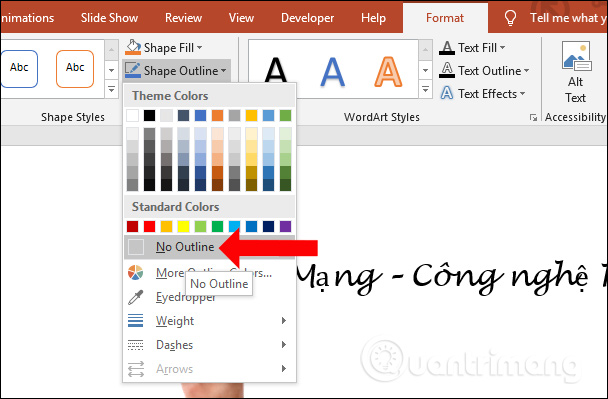
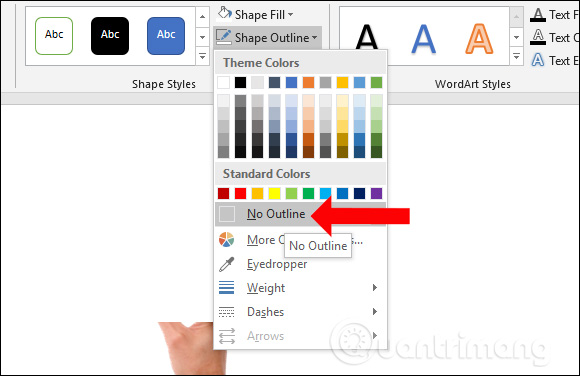
<p>Nhấn tiếp vào&nbsp;<strong>Shape Outline</strong>&nbsp;và chọn&nbsp;<strong>No Outline</strong>&nbsp;để bỏ đường viền của khung chữ bên dưới slide đi.</p>

<p><img alt="Bỏ viền khung" data-i="16" data-src="https://st.quantrimang.com/photos/image/2019/01/03/PowerPoint-hieu-ung-handwriting-16.jpg" data-was-processed="true" height="399" src="https://st.quantrimang.com/photos/image/2019/01/03/PowerPoint-hieu-ung-handwriting-16.jpg" width="608" /></p>

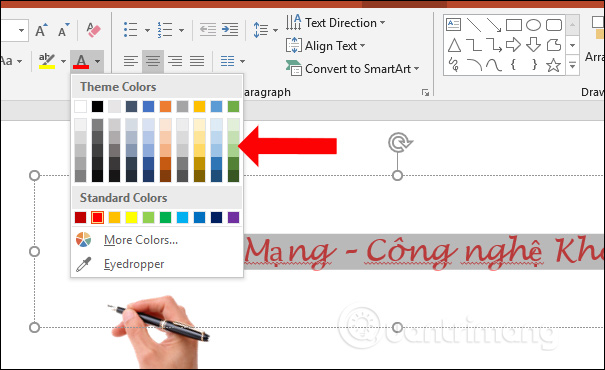
<p>Người dùng nên tiến hành đổi màu sắc cho chữ.</p>

<p><img alt="Thêm màu sắc chữ" data-i="17" data-src="https://st.quantrimang.com/photos/image/2019/01/03/PowerPoint-hieu-ung-handwriting-17.jpg" data-was-processed="true" height="370" src="https://st.quantrimang.com/photos/image/2019/01/03/PowerPoint-hieu-ung-handwriting-17.jpg" width="605" /></p>

<p><strong>Bước 8:</strong></p>

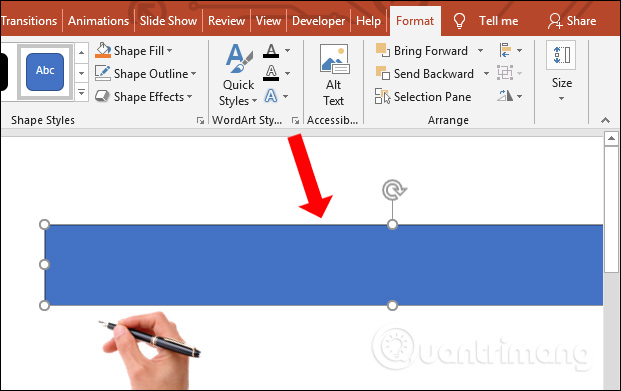
<p>Tiếp tục nhấn vào&nbsp;<strong>Shapes</strong>&nbsp;và chọn hình chữ nhật để che nội dung chữ đang có trên slide. Chúng ta sẽ tạo hiệu ứng kiểu khi bàn tay di chuyển đến đâu thì hình chữ nhật biến mất và nội dung chữ sẽ hiện ra.</p>

<p><img alt="Che nội dung chữ" data-i="18" data-src="https://st.quantrimang.com/photos/image/2019/01/03/PowerPoint-hieu-ung-handwriting-18.jpg" data-was-processed="true" height="391" src="https://st.quantrimang.com/photos/image/2019/01/03/PowerPoint-hieu-ung-handwriting-18.jpg" width="621" /></p>

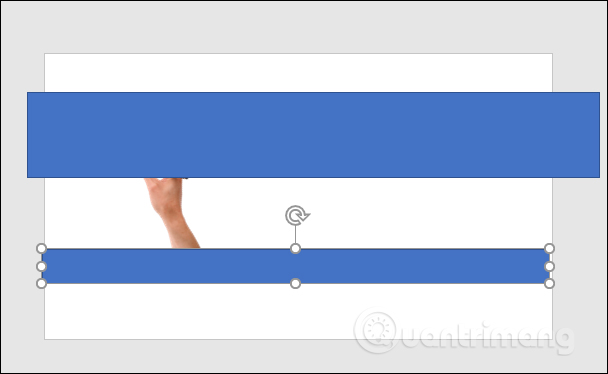
<p>Nên kéo hình chữ nhật đầu tiên tràn ra ngoài slide như hình dưới đây. Ngoài ra có thể tạo thêm 1 hình chữ nhật trang trí bên dưới như hình.</p>

<p><img alt="Kéo hình chữ nhật tràn slide" data-i="19" data-src="https://st.quantrimang.com/photos/image/2019/01/03/PowerPoint-hieu-ung-handwriting-19.jpg" data-was-processed="true" height="374" src="https://st.quantrimang.com/photos/image/2019/01/03/PowerPoint-hieu-ung-handwriting-19.jpg" width="608" /></p>

<p><strong>Bước 9:</strong></p>

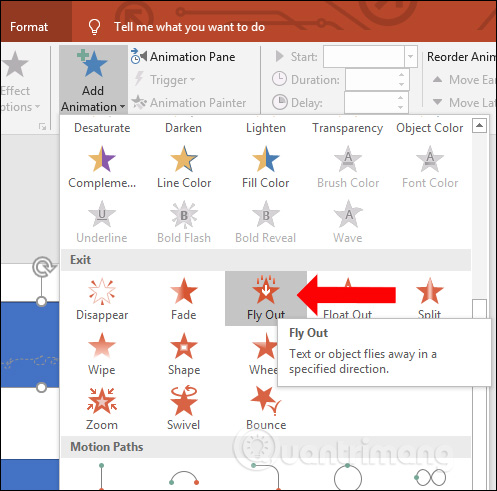
<p>Tiếp tục tạo hiệu ứng cho hình chữ nhật kiểu biến mất từ bên trái sang bên phải. Cũng nhấn vào&nbsp;<strong>Add Animation</strong>, tại&nbsp;<strong>Exit</strong>&nbsp;chọn tiếp vào&nbsp;<strong>hiệu ứng Fly Out</strong>. Hiệu ứng này sẽ làm hình chữ nhật biến mất từ trên xuống dưới.</p>

<p><img alt="Hiệu ứng biến mất" data-i="20" data-src="https://st.quantrimang.com/photos/image/2019/01/03/PowerPoint-hieu-ung-handwriting-20.jpg" data-was-processed="true" height="491" src="https://st.quantrimang.com/photos/image/2019/01/03/PowerPoint-hieu-ung-handwriting-20.jpg" width="497" /></p>

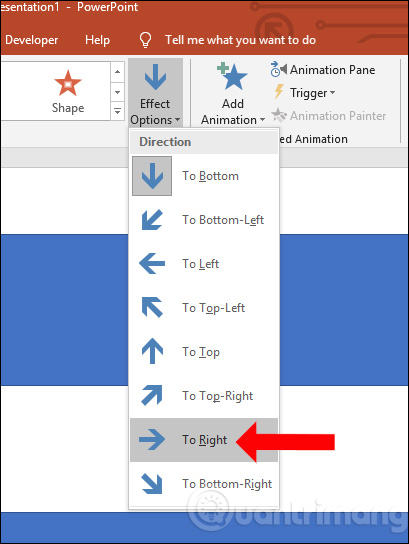
<p>Click tiếp chuột vào&nbsp;<strong>hiệu ứng Effect Options</strong>&nbsp;và chọn&nbsp;<strong>To Right</strong>. Như vậy hình chữ nhật sẽ biến mất từ trái sang phải để kết hợp hiện nội dung chữ</p>

<p><img alt="Hiệu ứng từ trái sang phải" data-i="21" data-src="https://st.quantrimang.com/photos/image/2019/01/03/PowerPoint-hieu-ung-handwriting-21.jpg" data-was-processed="true" height="544" src="https://st.quantrimang.com/photos/image/2019/01/03/PowerPoint-hieu-ung-handwriting-21.jpg" width="409" /></p>

<p><strong>Bước 10:</strong></p>

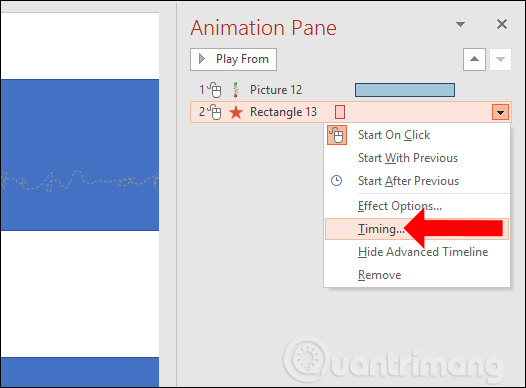
<p>Tiếp đến người dùng sẽ điều chỉnh thời gian hiệu ứng cho hình chữ nhật này. Cũng nhấn vào&nbsp;<strong>Animation Pane</strong>&nbsp;và chọn&nbsp;<strong>Timing....</strong></p>

<p><img alt="Thời gian cho hiệu ứng biến mất" data-i="22" data-src="https://st.quantrimang.com/photos/image/2019/01/03/PowerPoint-hieu-ung-handwriting-22.jpg" data-was-processed="true" height="388" src="https://st.quantrimang.com/photos/image/2019/01/03/PowerPoint-hieu-ung-handwriting-22.jpg" width="526" /></p>

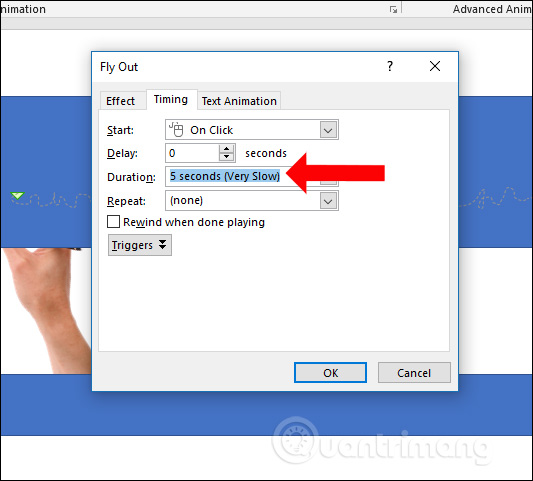
<p>Tại đây lựa chọn thời gian là 5 giây như hình bên dưới.</p>

<p><img alt="Tốc độ chạy hiệu ứng" data-i="23" data-src="https://st.quantrimang.com/photos/image/2019/01/03/PowerPoint-hieu-ung-handwriting-23.jpg" data-was-processed="true" height="481" src="https://st.quantrimang.com/photos/image/2019/01/03/PowerPoint-hieu-ung-handwriting-23.jpg" width="533" /></p>

<p><strong>Bước 11:</strong></p>

<p>Sau đó người dùng cũng tiến hành bỏ nền hình chữ nhật và bỏ đường viền cho hình chữ nhật như dưới đây.</p>

<p><img alt="Thay đổi nền chữ nhật" data-i="24" data-src="https://st.quantrimang.com/photos/image/2019/01/03/PowerPoint-hieu-ung-handwriting-24.jpg" data-was-processed="true" height="376" src="https://st.quantrimang.com/photos/image/2019/01/03/PowerPoint-hieu-ung-handwriting-24.jpg" width="580" /></p>

<p><strong>Bước 12:</strong></p>

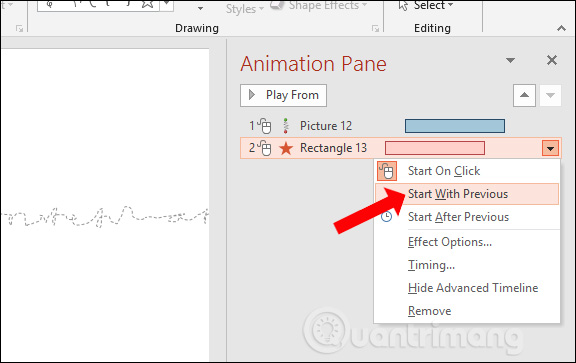
<p>Để hiệu ứng hình chữ nhật có thể chạy cùng lúc với hiệu ứng hình bàn tay cầm bút, nhấn vào biểu tượng hình chữ nhật và chọn&nbsp;<strong>Start With Previous</strong>&nbsp;tại giao diện Animation Pane bên phải. Như vậy 2 hiệu ứng sẽ chạy cùng với nhau.</p>

<p><img alt="Kết hợp 2 hiệu ứng" data-i="25" data-src="https://st.quantrimang.com/photos/image/2019/01/03/PowerPoint-hieu-ung-handwriting-25.jpg" data-was-processed="true" height="363" src="https://st.quantrimang.com/photos/image/2019/01/03/PowerPoint-hieu-ung-handwriting-25.jpg" width="576" /></p>

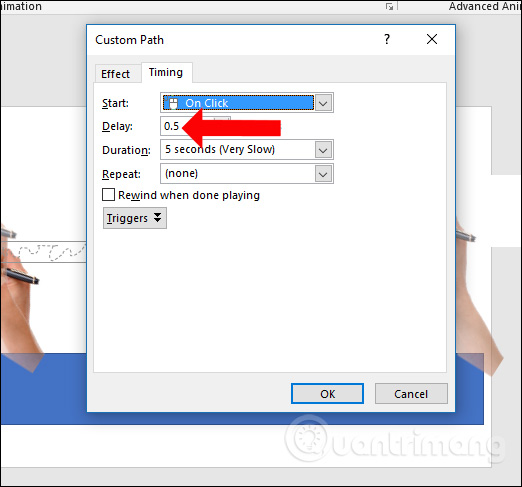
<p>Tiếp đến người dùng cũng có thể điều chỉnh tốc độ thực hiện trong phần Delay là 0.5 giây.</p>

<p><img alt="Điều chỉnh thời gian" data-i="26" data-src="https://st.quantrimang.com/photos/image/2019/01/03/PowerPoint-hieu-ung-handwriting-26.jpg" data-was-processed="true" height="487" src="https://st.quantrimang.com/photos/image/2019/01/03/PowerPoint-hieu-ung-handwriting-26.jpg" width="522" /></p>

<p><strong>Bước 13:</strong></p>

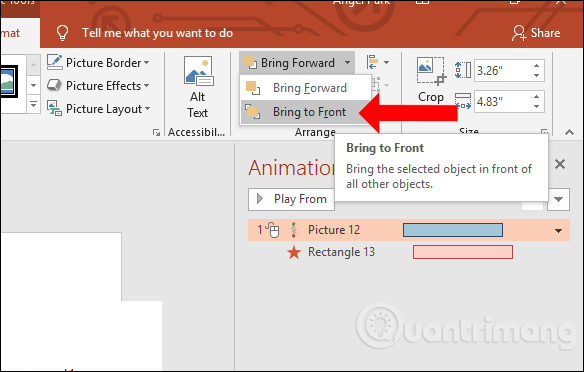
<p>Hiện tại hình bàn tay đang ở dưới hình chữ nhật. Click chuột vào hình bàn tay chọn&nbsp;<strong>tab Format</strong>, chọn tiếp vào&nbsp;<strong>Bring Forward</strong>&nbsp;và chọn&nbsp;<strong>Bring to Front</strong>.</p>

<p><img alt="Chỉnh hình bàn tay" data-i="27" data-src="https://st.quantrimang.com/photos/image/2019/01/03/PowerPoint-hieu-ung-handwriting-27.jpg" data-was-processed="true" height="372" src="https://st.quantrimang.com/photos/image/2019/01/03/PowerPoint-hieu-ung-handwriting-27.jpg" width="584" /></p>

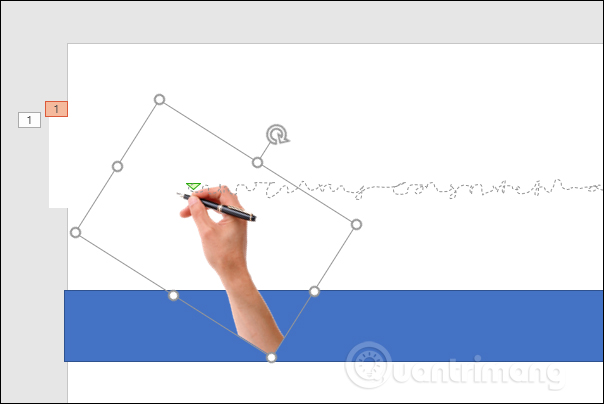
<p>Kết quả hình bàn tay sẽ hiện lên trước hình chữ nhật.</p>

<p><img alt="Hiện bàn tay lên trước" data-i="28" data-src="https://st.quantrimang.com/photos/image/2019/01/03/PowerPoint-hieu-ung-handwriting-28.jpg" data-was-processed="true" height="404" src="https://st.quantrimang.com/photos/image/2019/01/03/PowerPoint-hieu-ung-handwriting-28.jpg" width="604" /></p>

<p>Như vậy bạn đã hoàn thành xong các bước tùy chỉnh hiệu ứng cho các đối tượng trên slide. Bạn nên xem lại slide để chỉnh sửa thời gian chạy hiệu ứng, tốc độ chạy hiệu ứng hay vị trí nét vẽ sao cho phù hợp.&nbsp;<br />
Vậy là bạn đã thực hiện xong kiểu hiệu ứng chữ viết handwritting trên PowerPoint. Trong quá trình thêm hiệu ứng, chỉnh sửa hiệu ứng bạn cần lưu ý để hiệu ứng bàn tay cầm bút chạy cùng lúc với hiệu ứng hình chữ nhật. Như vậy khi bút viết thì hình chữ nhật cũng sẽ chạy từ trái sang phải, nội dung chữ sẽ hiển thị ngay sau đó.</p>
		</div>
				<div id="author">
						<p>
				<strong>Nguồn tin:</strong>
				quantrimang.com
			</p>
		</div>
	</div>
	<div id="footer" class="clearfix">
		<div id="url">
			<strong>URL của bản tin này: </strong><a href="https://thcsnguyentruc.xathanhoai.edu.vn/savefile/Tin-cong-nghe/huong-dan-tao-hieu-ung-chu-viet-powerpoint-67.html" title="Hướng dẫn tạo hiệu ứng chữ viết PowerPoint">https://thcsnguyentruc.xathanhoai.edu.vn/savefile/Tin-cong-nghe/huong-dan-tao-hieu-ung-chu-viet-powerpoint-67.html</a>

		</div>
		<div class="clear"></div>
		<div class="copyright">
			&copy; Trung học cơ sở Nguyễn Trực - Thị Trấn Kim Bài
		</div>
		<div id="contact">
			<a href="mailto:thinhvuongvn73@gmail.com">thinhvuongvn73@gmail.com</a>
		</div>
	</div>
</div>
        <div id="timeoutsess" class="chromeframe">
            Bạn đã không sử dụng Site, <a onclick="timeoutsesscancel();" href="https://thcsnguyentruc.xathanhoai.edu.vn/#">Bấm vào đây để duy trì trạng thái đăng nhập</a>. Thời gian chờ: <span id="secField"> 60 </span> giây
        </div>
        <div id="openidResult" class="nv-alert" style="display:none"></div>
        <div id="openidBt" data-result="" data-redirect=""></div>
<div id="run_cronjobs" style="visibility:hidden;display:none;"><img alt="cron" src="/index.php?second=cronjobs&amp;p=v18zU370" width="1" height="1" /></div>
<script src="https://thcsnguyentruc.xathanhoai.edu.vn/assets/js/jquery/jquery.min.js"></script>
<script>var nv_base_siteurl="/",nv_lang_data="vi",nv_lang_interface="vi",nv_name_variable="nv",nv_fc_variable="op",nv_lang_variable="language",nv_module_name="news",nv_func_name="savefile",nv_is_user=0, nv_my_ofs=7,nv_my_abbr="+07",nv_cookie_prefix="nv4c_Cgoz2",nv_check_pass_mstime=1738000,nv_area_admin=0,nv_safemode=0,theme_responsive=1,nv_recaptcha_ver=2,nv_recaptcha_sitekey="6LcNwC8UAAAAAMm8ZTYNygweLUQtOU0IapbDRk69",nv_recaptcha_type="image",XSSsanitize=1;</script>
<script src="https://thcsnguyentruc.xathanhoai.edu.vn/assets/js/language/vi.js"></script>
<script src="https://thcsnguyentruc.xathanhoai.edu.vn/assets/js/DOMPurify/purify3.js"></script>
<script src="https://thcsnguyentruc.xathanhoai.edu.vn/assets/js/global.js"></script>
<script src="https://thcsnguyentruc.xathanhoai.edu.vn/assets/js/site.js"></script>
<script src="https://thcsnguyentruc.xathanhoai.edu.vn/themes/edu25th/js/news.js"></script>
<script src="https://thcsnguyentruc.xathanhoai.edu.vn/themes/edu25th/js/main.js"></script>
<script src="https://thcsnguyentruc.xathanhoai.edu.vn/themes/edu25th/js/custom.js"></script>
<script src="https://thcsnguyentruc.xathanhoai.edu.vn/themes/edu25th/js/bootstrap.min.js"></script>
</body>
</html>